Apple Magic Mouse in Black, Buyer Questions Answered Straight

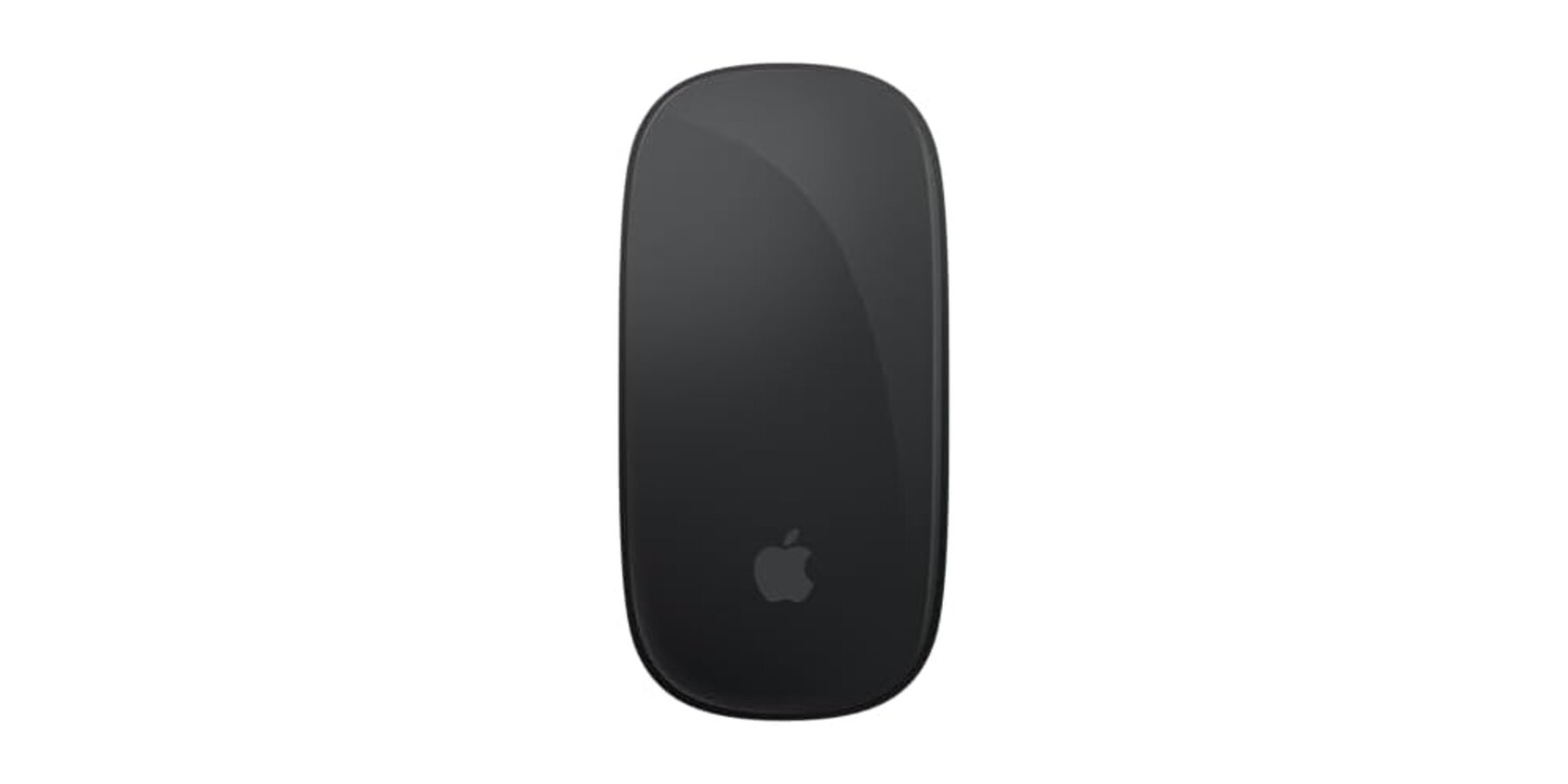
Every Mac desk hits the same fork in the road eventually. The trackpad is fine until you're three hours into a spreadsheet, or nudging clips around a timeline, and you start wanting a real mouse. So you search, and within about four minutes you discover that the Apple Magic Mouse might be the most argued-about pointing device on the internet. Half the people you ask say it's the only mouse that feels like a native part of macOS. The other half just want to talk about the charging port.
Both halves have a point. So instead of a standard review, we've structured this one around the questions we'd actually want answered before buying. The mouse in question is the Apple Magic Mouse in black, the current USB-C rechargeable version with the Multi-Touch surface on top.
The asterisk, up front: the charging port is on the bottom of the mouse. When the battery dies, you flip it over, plug it in, and stop working until it has enough juice to continue. You cannot use it while it charges. More on this below, because it deserves its own section.
The Questions Buyers Actually Ask
Is it comfortable for long work sessions?
Honest answer: it depends on your hand and your day. The Magic Mouse is low and flat, a design choice that puts looks and portability ahead of palm support. Reviewers doing light to moderate daily work are happy with it. Buyers prone to wrist strain, or anyone who likes a contoured mouse that fills the palm, tend to keep a traditional mouse around for the long days. One five-star reviewer put it well: it's more style than comfort, great for everyday productivity, but heavy users might want something with more curve.
If all-day ergonomics is your single top priority, you already have your answer, and it isn't this mouse.
What do the gestures actually get me?
The entire top surface is Multi-Touch. There's no scroll wheel at all. You scroll by dragging a finger along the glass, swipe sideways to move between web pages, and flick between desktops and spaces. It feels strange for the first day or two, then it clicks. Reviewers consistently describe the gestures as genuinely useful once they're in muscle memory, especially if you're already fluent on a Mac trackpad.
One catch from the reviews: the surface picks up horizontal swipes whether you meant them or not. One buyer found accidental sideways scrolling annoying enough that he installed a separate app to disable it. Most people just adapt, but if you have a heavy scrolling hand, expect an adjustment period.
What's the charging and battery situation?
It's rechargeable over USB-C, and Apple includes a woven USB-C charge cable in the box. No disposable batteries, no battery door to pry open. Apple quotes about a month or more per charge, and the reviews back that up; several people mention going weeks between top-ups, and one just says he "rarely" has to charge it.
The port lives on the underside, which is the famous part. Skip ahead to the caveat section for the full treatment.
How painful is setup, and how do I check the battery?
Setup is the best part. It pairs automatically with a Mac and is ready to go out of the box; you can also pair and charge in one move by plugging it into a USB-C port on your Mac. Reviewers with a Mac Studio and the latest MacBook Air both report instant, drop-free connections.
For battery level, macOS shows the mouse's remaining charge under the Bluetooth menu in settings. No guessing, no surprise deaths if you glance at it now and then.
Does it work with Windows, or an older macOS?
Windows: sort of. One buyer who lives in both worlds reports that basic pointing works fine, but the feature set is limited out of the box. The gesture cleverness lives in macOS, and while third-party utilities can claw some of it back on Windows, that's a project, not a purchase.
Older macOS is the sneakier issue. One buyer running Sonoma found that scrolling and the battery level readout didn't work on his system, while everything worked on a newer OS. Check what your Mac is running before you order, because the product page won't warn you.
Black or white?
Functionally the same mouse. The black version is a finish choice, and it's the right one if your desk runs dark: space black MacBook, dark desk mat, that whole mood. The white is the classic look. Nothing in the review base suggests any difference beyond the color, so pick whichever your setup wants to see every day.
What happens when the battery eventually wears out?
This one comes from a long-term Apple mouse owner who upgraded from the old replaceable-battery version. The battery in this mouse is sealed. When it exhausts its charge cycles, years down the line, the mouse is done and gets replaced, not repaired. He flagged it as the trade-off for never buying disposable batteries again. Too early for anyone in the review base to say how many years that actually takes.
The Caveat, Stated Plainly: You Can't Use It While It Charges
The charging port is on the belly of the mouse. When the battery runs out, the mouse goes on its back, the cable goes in, and you're done mousing until it has charge again. This isn't a rare edge case buried in one-star reviews; it's the single most repeated complaint across the entire review base, including from people who gave it five stars anyway.
"The moment it dies you have to flip it on its back like a stranded beetle and can't use it while it charges. It's daft, everyone knows it's daft, and Apple still won't fix it."
That's from a four-star review, and it captures the mood: irritation, not regret. The same reviewer notes that around thirty seconds of charge gets you moving again, so in practice a dead mouse costs you a coffee break, not an afternoon. But you should buy this mouse knowing the beetle moment is coming for you at least once.
Warm Corners tip: macOS shows the mouse's charge under the Bluetooth menu. Make a habit of glancing at it on Fridays and plugging in overnight when it gets low. Do that and the upside-down charging pose stays a thing that happens to other people.
Is This the Right Mouse for You?
You'll love it if you are...
- 🖥️ All-in on Mac and already fluent in trackpad gestures, because swiping between pages and desktops on the mouse itself is the feature that keeps people loyal
- 🧳 Working from a laptop bag as much as a desk, since the flat profile slips into a sleeve where a contoured mouse won't
- 🔋 Done with disposable batteries and battery doors, and happy to plug in a USB-C cable once a month or so
- 🖤 Building a dark setup where the black finish belongs
Skip it if you need...
- A contoured, palm-filling mouse for all-day sessions, or you already deal with wrist strain
- Full functionality on Windows without installing third-party utilities
- A mouse you can keep using while it charges
- Guaranteed full features on an older macOS version
Review Base at a Glance
4.5 stars across 2,996 ratings, which is a strong showing for a product whose charging port has been a running joke for a decade. The five-star reviews cluster around instant pairing, precise tracking, and battery life measured in weeks; the critical ones circle the same two gripes, the flat profile over long sessions and the upside-down charging. One suspiciously glowing review claims it paired with a "MacBook Neo", a laptop that does not exist, so we discounted that one and leaned on the reviewers describing desks that sound real. The pattern holds either way: people who buy it for a Mac keep it, and the complaints are the ones you can see coming.
As an Amazon Associate I earn from qualifying purchases. This comes at no extra cost to you.
You should also read:
Downy Unstopables: Your Questions Answered Before You Dump the Whole Cap In
The asterisk up front: this stuff is genuinely strong. The most common mistake buyers make isn't picking the wrong scent, it's using too much. More on the right amount below. Downy Unstopables are in-wash scent beads you toss in with your laundry, no fabric softener…
Continue reading...Solar Motion Sensor Lights: Your Questions Answered Before You Mount Them
The asterisk up front: these are bright, wide-coverage solar lights with one recurring weak point, the mounting hardware. If you're handy with a drill and don't mind swapping out a bracket screw, that's a minor annoyance. If you wanted a true set-and-forget install, read the…
Continue reading...King C. Gillette Beard Trimmer PRO: The Questions You'd Ask Before Buying
If you've owned a beard trimmer before, you know the drawer. The one with eight plastic guards in it, where the jump from guard 3 to guard 4 is the difference between "tidy" and "why did I do that". You stand at the mirror doing…
Continue reading...